If your work lives in spreadsheets, Slack threads, and weekly status meetings, you already know the pain: nobody’s sure what’s done, what’s blocked, or who owns the next step. I use monday.com because it puts that mess into one place, with clear owners and dates.
I’ll cover the monday.com features I see teams rely on, a practical look at monday.com pricing in 2026, and the real reasons marketing, dev, product, HR, and sales teams stick with this Work OS instead of stitching tools together.
The monday.com features I see teams use every day
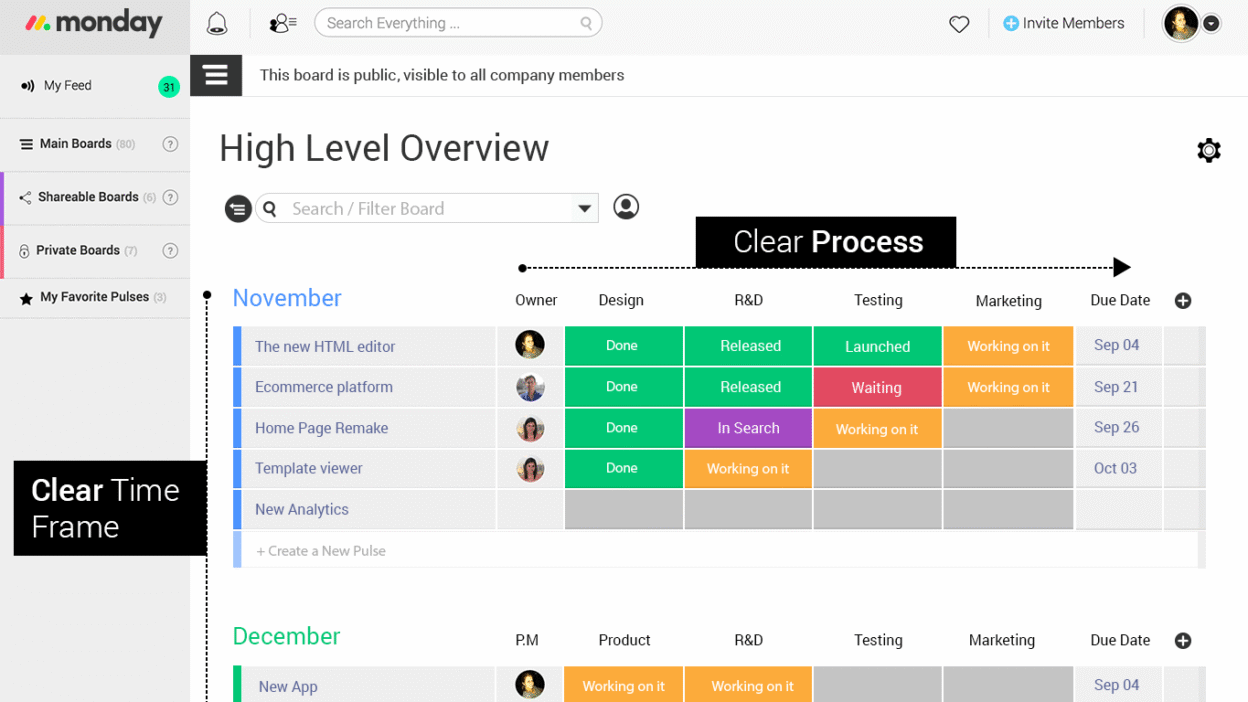
The best monday.com features aren’t flashy, they’re the ones that reduce daily follow-ups. Teams use it to assign work, track status, and keep files and decisions close to the task. Because the monday.com work OS is flexible, each team can run its own board, while leadership still gets a single view of progress.
I also like how it supports lightweight routines: weekly planning on Monday, execution during the week, then a quick review with dashboards. As a result, fewer updates get lost in chat, and fewer meetings exist just to ask, “Where are we?”
Boards, views, and reporting that make work easier to track
Most teams start with a board that has a status, an owner, and a due date. Then they switch views based on the moment: timeline for sequencing, calendar for launches, and Gantt for dependencies. Dashboards pull multiple boards into one place for leaders.
For example, on a campaign launch, I’ll track assets and approvals on one board, then show a dashboard with deadlines and blockers during standup.
2026 updates that matter: faster navigation, better controls, and smarter AI
Early 2026 updates focus on speed and control: the Recents pane, pinned and recent workspaces, and overlay view help me jump between boards without losing context. WorkCanvas makes quick planning easier, and multi-level subitems (up to four levels) help when work breaks into tiny parts. Calendar editing saves clicks.
AI Sidekick now acts as the AI hub, with AI columns in templates and AI workflows. Governance features like credit limits, activity logs, previews, and undo make AI safer for teams.
monday.com project management for real teams, not just project managers
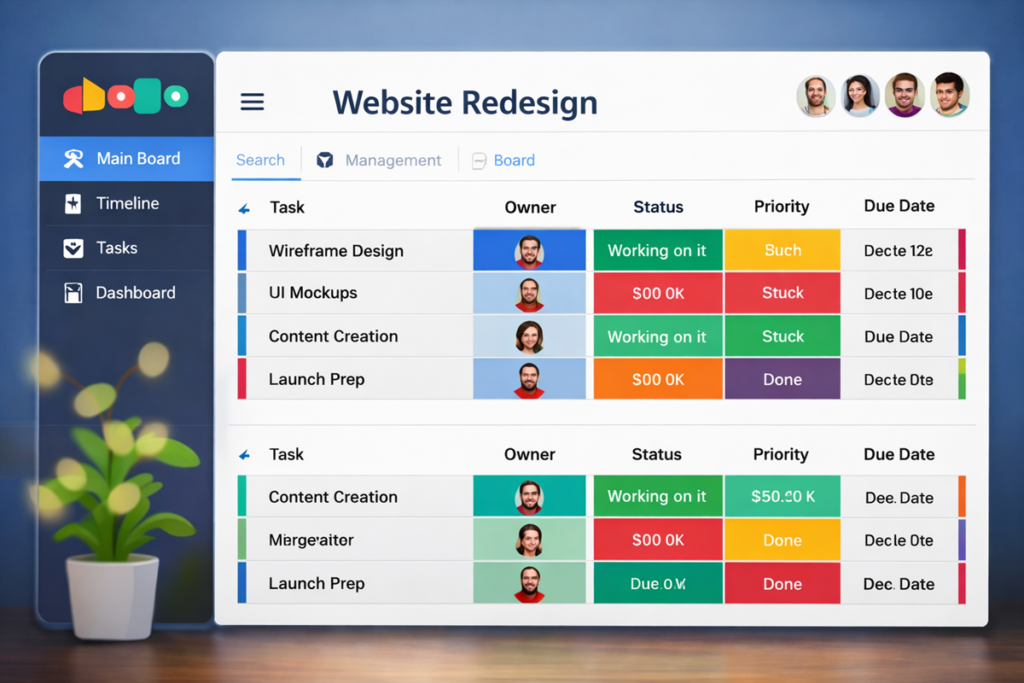
I think monday.com project management works best when each department keeps its own workflow, but shares the same language for status and ownership. Marketing doesn’t need the same board as engineering, and HR shouldn’t be forced into sprint terms.
Still, everyone benefits from consistent basics: one place for requests, a clear queue, and a visible handoff. When a task moves from “In progress” to “Needs review,” the next person shouldn’t guess. They should get a notification, the context, and the file.
How marketing, product, sales, HR, and dev teams set up their workflows
Marketing runs a campaign calendar with briefs, assets, approvals, and publish dates. Product tracks a roadmap and feature intake with priority and effort fields. Sales manages a CRM-style pipeline, optionally with a two-way sync to Salesforce. HR tracks a hiring funnel from application to offer and onboarding. Dev connects sprint work with a two-way sync to Jira, while keeping stakeholders updated.
monday.com pricing in 2026, and how I’d pick the right plan
monday.com pricing is per seat, per month on annual billing, and monthly billing costs about 18% more. Paid plans require at least 3 seats, and seats are sold in blocks (like 3, 5, 10). That’s why pricing can jump faster than you expect.
When I choose a plan, I focus on what people feel day to day: automation and integration caps, guest access, storage, and dashboards. If you need lots of cross-tool updates, Standard or above usually makes sense. If you need deeper reporting, time tracking, and many guests, Pro tends to be the turning point.
A quick plan-by-plan cheat sheet with the limits that trigger upgrades
Here’s the quick comparison I use when teams ask where upgrades come from.
| Plan | What you get (and what pushes upgrades) |
|---|---|
| Free | $0, up to 2 seats, limited features |
| Basic | $9 to $12, no automations or integrations |
| Standard | $12 to $14, timeline and calendar views, 250 automations and integrations |
| Pro | $27 to $30, time tracking, advanced dashboards, more automations, unlimited guests, 100GB storage |
| Enterprise | Custom, SSO, premium support, stronger controls |
The caps are the real story, especially automations and integrations.
Conclusion
I keep coming back to monday.com because it gives teams shared visibility, flexible workflows, and automations that cut busywork. Still, costs can rise quickly as seats grow, and automation limits can force an upgrade sooner than planned. If you’re small, I’d start with Standard or test first. Pick one real workflow, run it for two weeks, and see if status meetings shrink.